 on
the toolbar.
on
the toolbar.Text formatting determines how your text will look in your document. Making your text look better is very easy using the Page Editor. We will start discussing bold, italic, and underlined formats.
1 Bold, Italic, Underlined and Strike-through
2 Styles
3 Text Alignment
4 Paragraph (Block) Format
5 Fonts
6 Text Size
7 Colors
8 Subscript and Superscript
Bold, Italic, Underlined and Strike-through
You may also arrange the way your font looks by choosing whether the font should be bold, italic, underlined or struck through.
To make your font bold, press the B on the toolbar.
If you want it to be in italic, press the I on the toolbar .
For underlining, press the u on the toolbar.
And
finally to strike a line through the text press on
the toolbar.
Example:
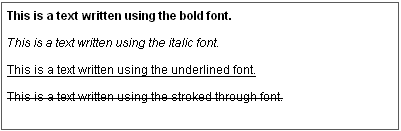
If you choose any of these options, you will learn that the button on the toolbar will get highlighted. If you want to disable the function press its button again. Of course you can mix these options as much as you want.
Example:
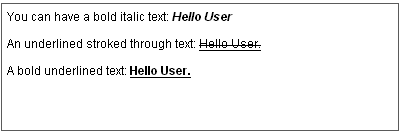
Notice that if you don't switch the underline option off the underline will go between your blanks.
Example:

The same thing happens when you use the strike through function.
Styles
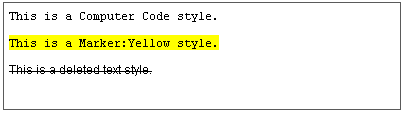
It is quite easy to make your text look ugly or difficult to read by formatting it in several ways. Styles help making all formatting uniform in your text. Each style option contains a predefined combination of formatting features.
Styles are also a way to combine all the formatting function described in this page. They give you fast access to the commonly used text formats. For example: you don't have to change the font, its color, its background, its size. You simply pick a style you prefer from the Style menu and start typing.
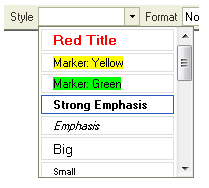
It is the best way to change the look of the text.
Example:
Text Alignment
A paragraph of text can have its lines aligned to either of the sides of the document, as well as be centered in it. You may also force the lines to take the entire space available in the document (like aligning to both sides at the same time).
To align your
text at the left side of the editing area, press the  button
on the toolbar.
button
on the toolbar.
Example:

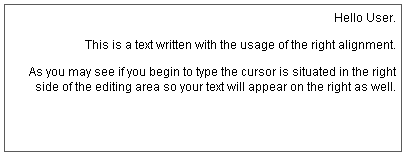
If you want instead to have the text aligned at the right side of the editing area, just press
the  button on the toolbar.
Example:
In order to
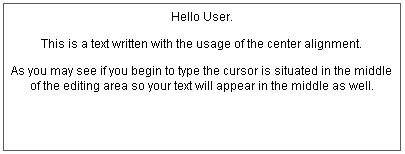
align your text at the center of the document, press the  on your toolbar.
Example:
The
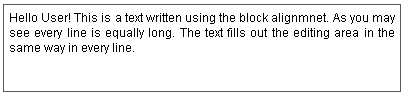
last option is the block alignment. If you want to activate it press  on the toolbar. This function is similar to the left alignment.
You also begin typing from the left side of the screen. The difference
instead can be noted when writing several lines of text. Each one will
have the same length even though they don't have to have the same amount
of words or letters. The lines will just expand and the text will be equally
long so that the lines will end in the same place.
on the toolbar. This function is similar to the left alignment.
You also begin typing from the left side of the screen. The difference
instead can be noted when writing several lines of text. Each one will
have the same length even though they don't have to have the same amount
of words or letters. The lines will just expand and the text will be equally
long so that the lines will end in the same place.
Example:
Paragraph (Block) Format
Another very important function which you will probably use in your text is the Format menu in the toolbar:
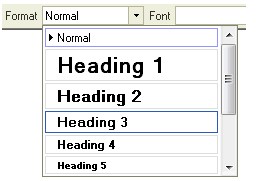
A format is used for organizing your text and to distinguish different parts of your text. For example if you want to start a new chapter or to use different categories and subcategories, you use the format menu and choose different heading styles.
Example:
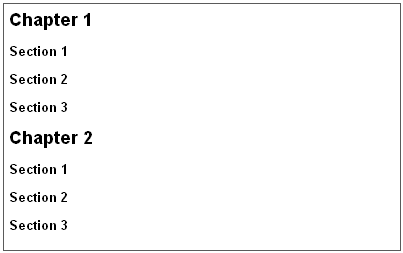
You can see headings also in this guide. Fonts, Layout and format, Styles are all headings used to divide this document into categories.
Fonts
Fonts determine how the letters of your text look like. The most commonly used fonts are "Times New Roman" and "Arial". They are used in most documents created worldwide. You may say that they are official fonts used in formal documents. To select a font, access the font menu in your toolbar and click on the font you want.
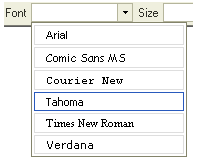
Example:
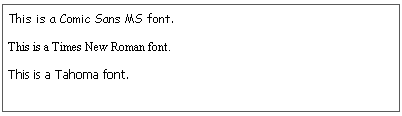
We encourage you to avoid overusing this feature. You can easily produce a document that looks bad or difficult to read. Give preference to the Styles menu instead, which has been precisely designed for you already.
Text Size
To change font size, open the "Size" menu in the toolbar. There you will find a range of sizes. To change the size of your font just choose one of the options.
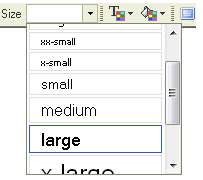
Example:
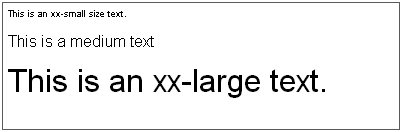
As you can see, you have a variety of sizes.
Colors
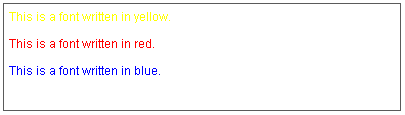
The other option to make your text look different is changing the text color or its background color.
If you want
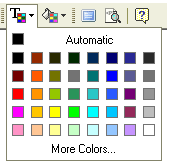
to change your text color, press the text color button -  . Several colors will appear in a menu. If you are not satisfied
with the colors available in that panel click "More colors...".
. Several colors will appear in a menu. If you are not satisfied
with the colors available in that panel click "More colors...".
To choose the color you want to use, just click on it.
Example:
You may also
change the text background color using the  button. Again
you will find a range of colors the same ones as in the text color. Click
on the color you want to choose.
button. Again
you will find a range of colors the same ones as in the text color. Click
on the color you want to choose.
Example:

You may also mix the colors of your text and the background.
Subscript and Superscript
Subscript and
superscript are usually used for mathematical needs. Subscript is a way
to put an index to a letter or to a number. The subscript has a smaller
font than the normal text. To activate subscript you must press the  button on the toolbar.
Example:
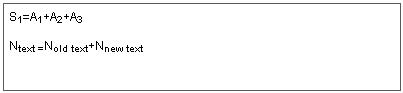
As you can see you can use either a number in a subscript or a text.
The superscript
works in the same way as the subscript but instead of placing the index
in the bottom you place it in the top. This function is usually used in
mathematical equations to write the "to the power of" function.
You can access it from the toolbar using the  button.
Example:
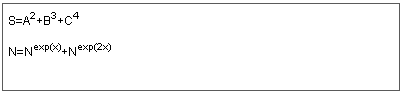
You can also mix these two functions:
Example:
