 on the toolbar. The text which was
beside your cursor will automatically gain number one on the list.
on the toolbar. The text which was
beside your cursor will automatically gain number one on the list. Creating a list is very easy and intuitive. Page Editor offers two kinds of lists.
Numbered Lists
Creating
Properties
Bulleted Lists
Creating
Properties
To create and
numbered list press on the toolbar. The text which was
beside your cursor will automatically gain number one on the list.
Example:
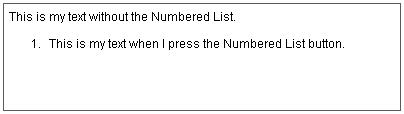
If you want to set another number below just press ENTER and the next number will appear
Example:
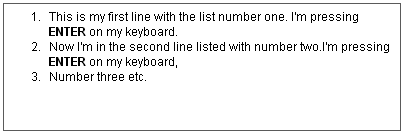
You may also
highlight the lines you want to be numbered and than press  .
.
If you want
to stop Numbered Listing just press the  button again.
The function will deactivate.
button again.
The function will deactivate.
Properties
If you want to change the list properties press your right mouse button any place inside your list. A context menu will appear:
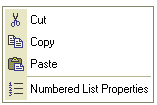
Choose Numbered list Properties. A Popup window called "Numbered List Properties" will appear:
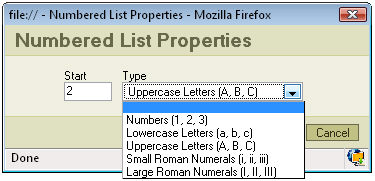
Start: the number which you'll put in to this field will determine from which number your list will start.
Type: you may choose from several options regarding what type of listing you want to use, for example Large Roman Numerals.
Creating
It works exactly
like the Numbered List but instead of numbers you have shapes. To activate/deactivate
this function press  .
.
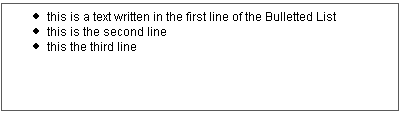
Example:
Properties
If you want to change the list properties, press the right mouse button inside your list. A context menu will appear:
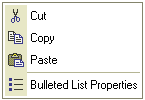
Choose Bulleted List Properties. A Popup window called "Bulleted List Properties" will appear:
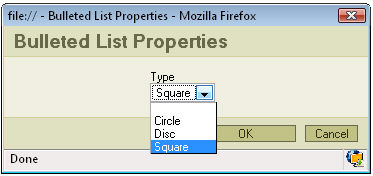
Type: you may select the type of the dots you use in your list.