Most buyers who visit your website expects to find rich listing content. Zealder.com provides you a quick and powerful listing manager to accomplish this. With our listing manager you can add your listings and attach many rich data including unlimited amount of hi-resolution photos (PowerAgent Pro and PowerBroker members), listing podcast, virtual tours, listing data, and many more.
To add listings to your website:
Go to My Listings from the account control panel.
Select Add listing.
Adding a listing is a three step process.
Step 1:
Enter all basic listing information.
PowerBroker members can assign listings to any agent in the agent roster by selecting the listing agent from the drop down list (must be logged in as the account owner).
Step 2:
Listing detail: Provide listing detail, select features and select groups where you want to display the listing on your website. See also listing groups.

Step 3:
Listing photo: Add one or more photos for your listings.
Click Browse and select a photo using the dialog box.
Select either Main photo or Additional photo. (See note below about interchanging between main and additional photos)
Enter a description in the text box (optional).
Click Save and Continue. The listing is displayed in the section below. If you wish to delete a listing, click Delete in the listing section.
Click
Back to listings to return to
the manage listings screen where the listings are displayed.

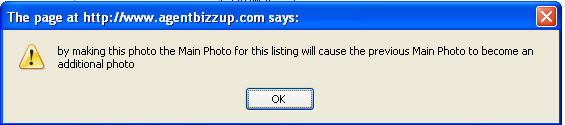
NOTE: If you
select a photo using the Main radio button, the next photo becomes an additional
photo. The Additional radio button is automatically selected. While
this additional radio button is selected, if you click the main radio
button to make the image as main, the following message is displayed.